Intellisense
regex101 Intellisense is the world's first complete code-completion system built specifically for regular expressions. It brings best-in-class, parser-aware guidance to the pattern and substitution editors.
This feature is unique to regex101. No other regex editor combines complete syntax, parser context, guided values, and token repair in one menu.
The parser and Intellisense use the same syntax catalog. This shared source covers every syntax form that regex101 supports. Suggestions follow the selected flavor and the exact cursor context.
Each suggestion includes a clear name, a token icon, and a short explanation. The completion menu becomes a quick reference guide that stays at your fingertips.
Intellisense helps you build valid structures and complete required values. The parser validates the expression while you write. This feedback helps you avoid mistakes before testing starts.
Open Intellisense
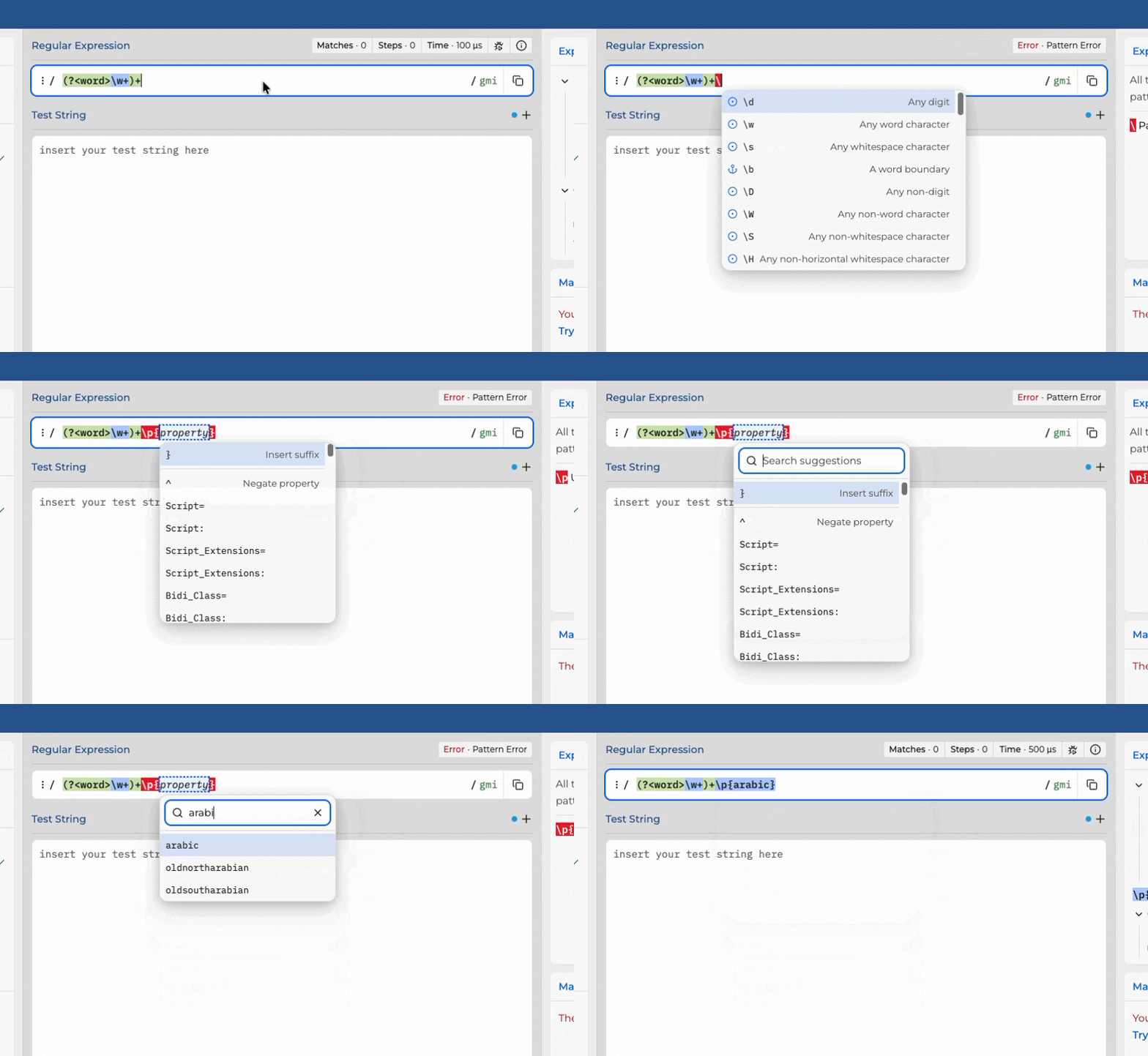
Intellisense opens automatically after common syntax prefixes. Examples include \, (?, and {
when the preceding token can accept a quantifier.
You can also open Intellisense at any editable position:
- Put the cursor at the position that you want to edit.
- Press
Ctrl+Space.
If no syntax applies at that position, the menu shows No suggestions are available here. This message confirms that Intellisense received the request.
Search the suggestions
Use search when the menu contains many items:
- Open Intellisense.
- Press
Ctrl+Spaceagain. - Enter one or more search terms.
Search uses the syntax, name, explanation, category, and section of each item. You can search for a
token name, a syntax character, or a concept such as group or boundary.
Keyboard controls
| Key | Action |
|---|---|
Ctrl+Space | Open Intellisense. If the menu is open, open search. |
Arrow Up / Arrow Down | Move through the suggestions. The selection wraps at each end. |
Page Up / Page Down | Move through one page of suggestions. |
Enter | Accept the selected item or move to the next slot. |
Escape | Close search or Intellisense. Inserted syntax remains in the editor. |
You can also select any item with the pointer.
Suggestions that understand the cursor context
Intellisense does not use one generic list. It reads parser state at the cursor and evaluates each syntax form for that position.
The context includes:
- the selected regex flavor
- the pattern or substitution editor mode
- the active flags
- character classes, groups, lookarounds, and conditionals
- comments and free-spacing mode
- the token at the cursor and the token to its left
- whether the preceding token can accept a quantifier
- the capture groups that a reference can use
This context removes suggestions that cannot work. For example, Intellisense does not suggest a backreference inside a comment or a quantifier after a non-quantifiable token.
Intellisense also blocks suggestions inside the condition of a conditional group. The regular group body still receives normal suggestions.
Complete syntax coverage
The syntax catalog contains every user-facing syntax form that the regex101 parser supports. The catalog includes:
- groups, lookarounds, and conditionals
- quantifiers and quantifier modifiers
- anchors, character classes, and shorthand classes
- escapes and quoted literals
- Unicode properties and POSIX classes
- backreferences and subroutine calls
- PCRE verbs and callouts
- flavor-specific syntax
- substitution tokens and references
Intellisense applies the availability rules for the selected flavor. A JavaScript editor does not receive PCRE syntax, and a substitution editor receives substitution forms instead of pattern forms.
Common syntax appears before uncommon syntax. Suggestions are grouped by token type, with clear dividers between groups. A suggested repair always appears before the general list.
Fill guided slots
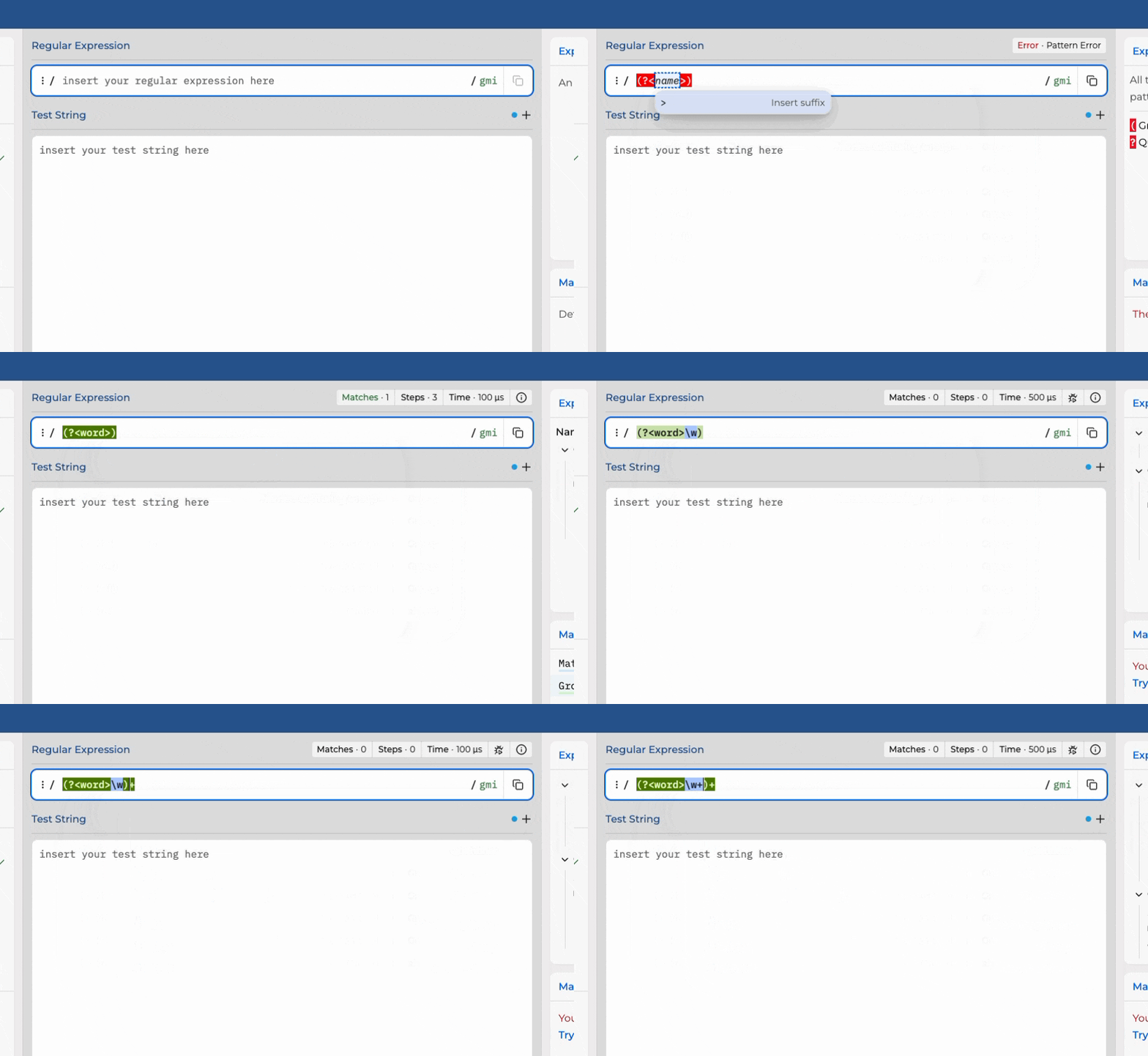
Some syntax needs a value, such as a group name or a Unicode property. Intellisense inserts a visible slot for that value and selects its current text.
You can always enter free text in a slot. If regex101 knows the valid values, the menu also provides a filtered list. Selecting a terminal value commits the slot and moves the cursor to the next position.
Some slots support more than one value. Modifier slots stay open so that you can select several flags. Other slots offer continuations that change the syntax shape.
Examples include:
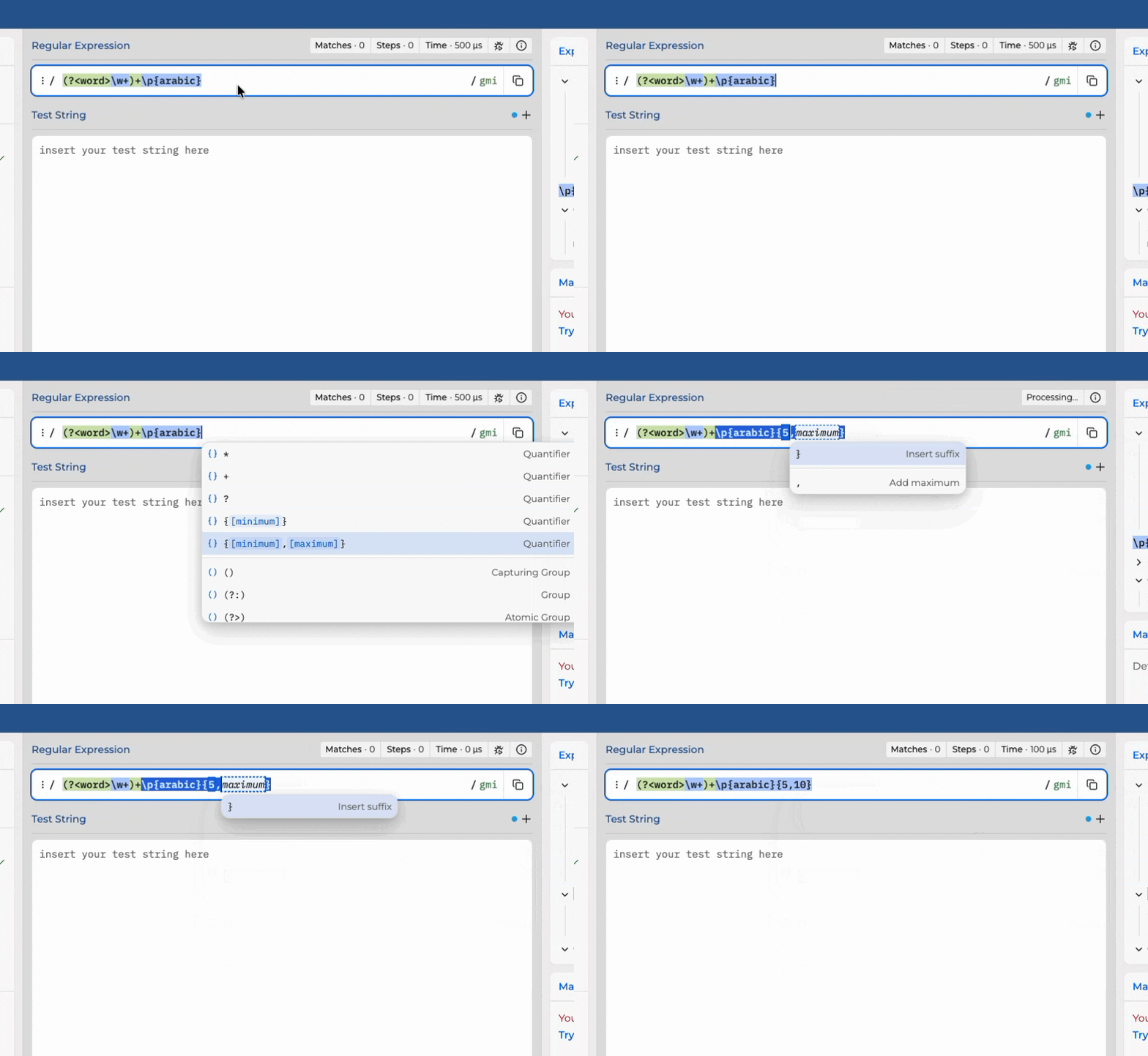
{[minimum]}can close with}or continue to{[minimum],[maximum]}.\p{[property]}can acceptLetteror continue toScript=[value].(?<[name]>)creates a group-name slot and places the final cursor inside the group.(?[modifiers]:)can continue with-to add disabled modifiers.- reference slots list the compatible capture groups from the current expression.
Press Enter to accept the current slot. If another slot exists, Intellisense selects it. If the
syntax is complete, Intellisense closes the slot session.
Press Escape to close the slot session without removing the inserted syntax. The parser reports an
error if the remaining value is not valid.
If you move away from a slot or delete its syntax, the slot closes automatically.
Repair or change existing syntax
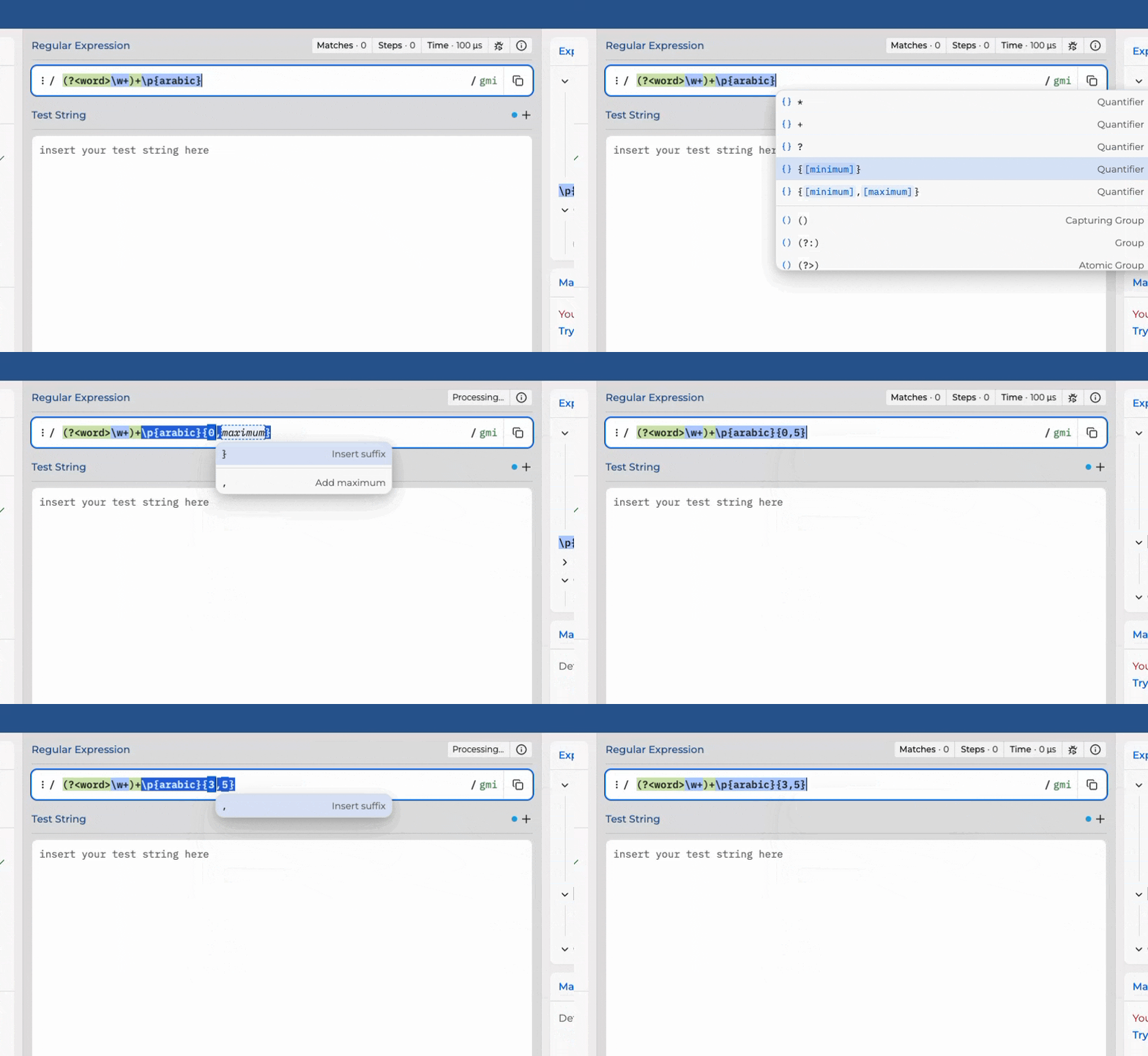
Intellisense can reopen a partial or complete token. Put the cursor inside the token and press
Ctrl+Space. The matching structure appears first, and the existing value fills its slot.
This repair flow stays within the token at the cursor. It does not scan an earlier token and replace unrelated text. Intellisense also keeps valid suffixes and quantifier modifiers when the parser accepts the result.
| Existing text | Available action |
|---|---|
(?<name | Complete a named group with name already in the slot. |
a{10} | Edit the minimum or add the optional maximum slot. |
\p{Script=Greek} | Edit the property key or value. |
(?im:test) | Edit enabled modifiers or add disabled modifiers after -. |
(a)\2 | Repair the reference with a list of available capture groups. |
Intellisense can also change one compatible structure into another. For example, you can change a group header without removing its body.
The parser remains the final authority. Intellisense guides the structure, but it does not block free text or silently change an invalid value.
References and known values
Reference slots use the capture tables from the parser. The menu names each target as a group and shows its name, number, or both. Relative references follow the direction and limits of their syntax.
The substitution editor uses the capture groups from the active pattern. This makes numbered and named replacement references easier to select and understand.
Known syntax sets also provide value suggestions. These sets include flags, POSIX names, Rust word boundaries, PCRE verbs, Unicode scripts, and Unicode categories.
Unicode property completion supports direct values and keyed values. You can select Letter, or you
can build values such as Script=Greek and General_Category=Uppercase_Letter.
The list updates as you enter text. Free text remains available, and the parser reports an error for an unsupported value.
A quick reference guide in the editor
The completion menu uses the same token names, icons, and explanations as the regex101 explanation engine and Quick Reference. Syntax uses the editor font, while explanations use the interface font.
This information helps you compare similar syntax without leaving the editor. You can inspect a group, anchor, escape, or substitution token before you insert it.
Settings and availability
Intellisense is available to all users during its initial release. Free access may have limits in a future release. regex101 Pro will retain complete access to the feature.
To disable Intellisense, open Settings, select Editor, and clear Enable Intellisense.
Intellisense is not active in read-only or embedded editors.