Substitution Pipeline
Substitution Pipeline is a regex101 Pro editor mode for applying several regular-expression substitutions in sequence. A layer can use regular substitution or list substitution. The output of each layer becomes the input of the next, so a multi-step transformation can be built and inspected in one editor.
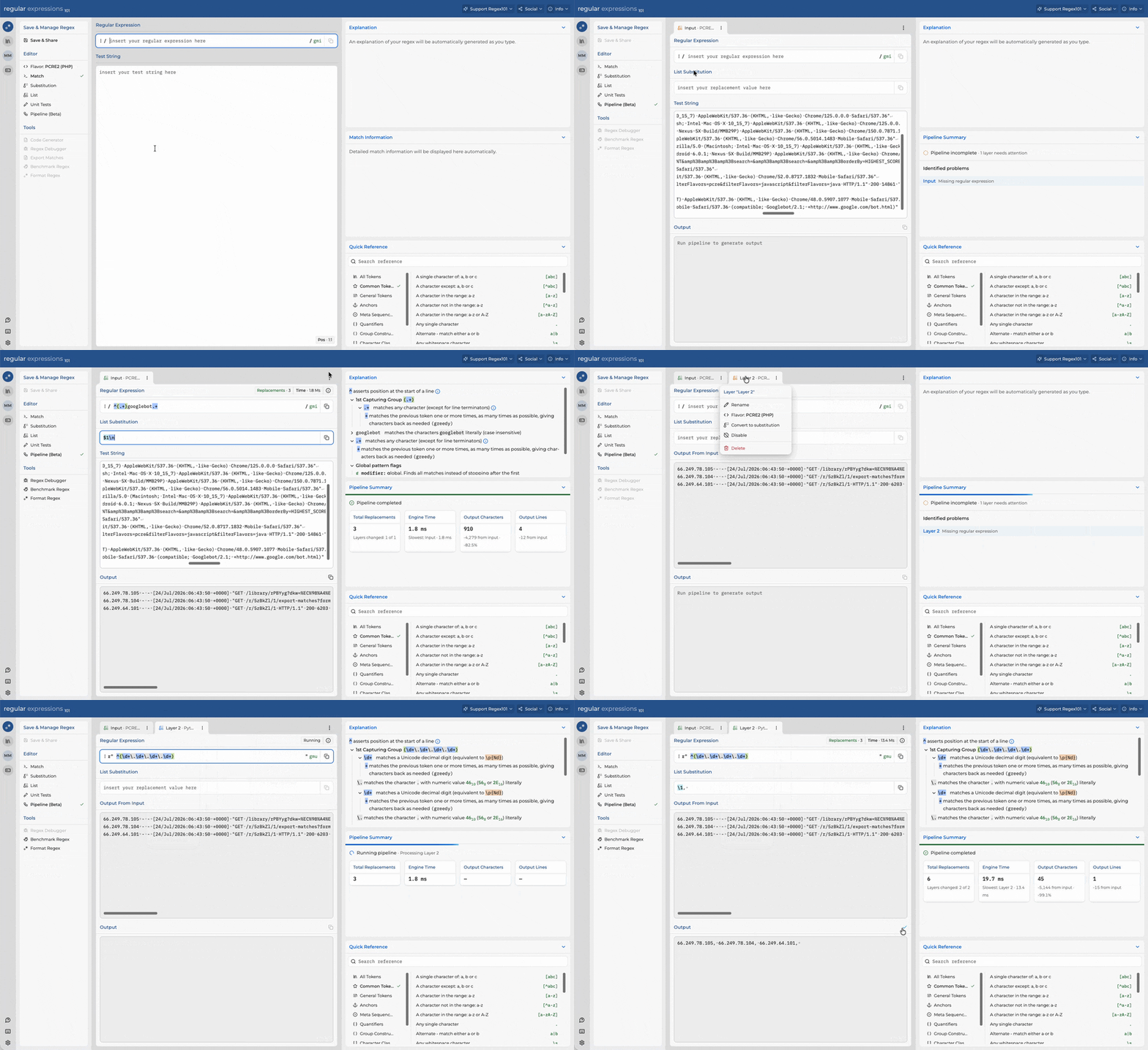
Creating a pipeline
When you open an empty pipeline, choose Add substitution layer or Add list substitution layer to create its first layer. Without regex101 Pro, these controls are disabled and the pipeline remains read-only.
Once the first layer has been created, a pipeline contains two kinds of tabs:
| Tab | Contents |
|---|---|
| First layer | Regular expression, substitution, the initial test string, and the first transformed output |
| Additional layers | Regular expression, substitution, read-only input from the prior layer, and the layer's output |
The first tab is named Layer 1 by default and its test string starts the pipeline. Every additional layer receives the previous layer's output automatically; that input is read-only because it is produced by the pipeline rather than entered separately. Every layer also shows its own read-only output, so the input and result of a transformation can be inspected together. The final layer's output is the pipeline's final result.
Each layer has its own:
- substitution type
- regular expression
- substitution value
- regex flavor
- flags and delimiter
- name
- execution result and timing
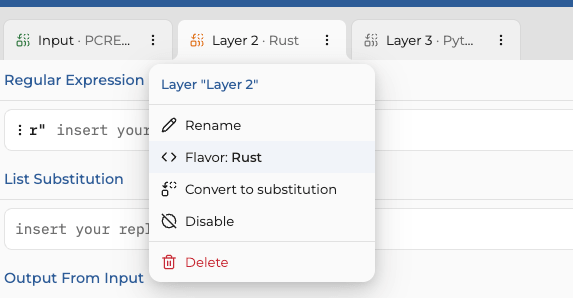
Selecting a tab changes the main editor to that layer. Change a layer's regex flavor from its menu; compatible regex tools operate on the selected layer.
Adding and organizing layers
Open the pipeline menu at the right end of the tab row and select Add substitution layer or Add list substitution layer. A new layer is appended to the pipeline and uses the flavor of the currently selected layer.
Every layer can be renamed or converted between regular and list substitution from its menu. The same menu is available by right-clicking the tab. A layer can also be renamed by double-clicking its name. Additional layers can be:
- reordered by dragging their tabs
- disabled and enabled from the layer menu
- deleted after confirming the deletion
To remove every layer and start again, open the pipeline menu and select Clear pipeline. This returns you to the introductory screen after confirmation.
The first tab remains fixed. It can be renamed or change substitution type, but it cannot be disabled or deleted.
A disabled layer stays in the pipeline but does not perform a substitution. Its input passes through unchanged to the next layer.
Running a pipeline
Pipelines can run automatically after an edit or manually from the pipeline menu. Automatic execution is controlled by the Run pipeline automatically execution setting.
Use Run pipeline to start or restart the pipeline. While it is running, the same menu action becomes
Cancel pipeline. Ctrl+Enter or Command+Enter can also start or restart a run.
Layers execute from left to right. A layer does not start until the preceding layer has completed successfully. If a layer fails, execution stops and all later layers are marked as blocked. Editing the pipeline invalidates affected results so the next run uses the current patterns, substitutions, order, and input.
The whole pipeline does not need to be complete before it can run. regex101 executes the ready layers up to the first incomplete layer, then shows the latest output as that layer's read-only input. This lets you build and inspect the pipeline one layer at a time.
The icon on each layer tab identifies regular or list substitution. Its color and animation show the current state:
- incomplete
- not run
- queued or running
- completed
- error
- blocked by an earlier error
- disabled
Pipeline Summary
Pipeline Summary replaces Match Information in the right sidebar while this editor mode is active. It shows overall progress and the state of the current run.
Before a run, the summary lists layers that need attention, including missing input, missing regular expressions, and parser errors. Selecting a layer in this list opens it directly.
After execution, the summary reports:
- total replacements
- total regex engine time
- layers that changed their input
- the slowest layer
- final output character and line counts
- the change in output size relative to the initial input
Engine failures are shown against the layer that failed, using the same error explanations as the regular regex editor.

Working with individual layers
The normal editor tools that operate on one pattern continue to use the selected layer. This includes formatting, debugging, benchmarking, and ReDoS analysis when those tools support the selected flavor and input.
Quick Reference examples are loaded into the selected layer.
After a successful run, each layer shows the result of its own transformation. The last layer contains the pipeline's final string. If execution stops on an error, Pipeline Summary reports the affected layer and all later layers are marked as blocked.
Pro access and current limitations
Creating and editing substitution pipelines currently requires regex101 Pro. Without Pro, the editor is read-only and offers an option to upgrade.
Pipeline persistence is not available yet. While Substitution Pipeline is selected:
- saving is disabled
- shareable links cannot be created
- code generation is unavailable
- match export is unavailable
Changing to Match or Substitution mode restores the features supported by those modes.